Building a Malware Development Lab, Part 1: Elastic EDR with a Self-Hosted Elastic Stack
Contents
- 1. Lab Architecture
- 2. Prerequisites & Assumptions
- 3. Build the Lab Network (VMware Workstation)
- 4. Build MALDEV01 (Windows 11)
- 5. Build ELK01 (Ubuntu Server 24.04)
- 6. Install Elasticsearch
- 7. Install Kibana
- 8. Install Fleet Server (on ELK01)
- 9. Create the Windows Agent Policy with Elastic Defend
- 10. Build TARGET01 (Windows Server 2025)
- 11. Install the Elastic Agent on TARGET01
- 12. Validate the EDR (EICAR test)
- 13. Set Up MALDEV01 for Malware Development
- 14. Using the Lab
- 15. Checklist
- 16. Troubleshooting
- 17. Alternative: Run the Elastic Stack in Docker
- 18. Next Parts in This Series
In this series I build an isolated malware development lab from scratch. This first part sets up a self-hosted Elastic Stack (Elasticsearch, Kibana and Fleet Server) on a Linux VM (ELK01), a Windows Server target (TARGET01) protected by Elastic Defend (Elastic's EDR), and a Windows workstation (MALDEV01) for building the payloads and loaders from MalDevAcademy.
1. Lab Architecture#
        Lab network: VMnet10, 10.10.10.0/24 (host-only, isolated)
   +--------------------------------------------------------------+
   |                                                              |
   |  ATTACKER01 (10.10.10.30)      MALDEV01 (10.10.10.40)        |
   |  Linux, Mythic C2,             Windows 10/11, Visual         |
   |  tooling                       Studio, payload dev,          |
   |                                lab workstation (browser,     |
   |                                SSH, RDP into the lab)        |
   |                                                              |
   |  TARGET01 (10.10.10.20)        ELK01 (10.10.10.10)           |
   |  Windows Server 2025 --------> Ubuntu Server 24.04           |
   |  Elastic Agent +               Elasticsearch :9200           |
   |  Elastic Defend (EDR)          Kibana :5601                  |
   |         |                      Fleet Server :8220            |
   |         +-- telemetry/alerts --+                             |
   +--------------------------------------------------------------+

   Every VM also has a NAT adapter (VMnet8) for internet access.
   It stays disconnected unless the VM must download something.
VM inventory#
| Hostname | OS | Role | Lab IP | vCPU | RAM | Disk |
|---|---|---|---|---|---|---|
| ELK01 | Ubuntu Server 24.04 | Elasticsearch, Kibana, Fleet | 10.10.10.10 | 4 | 8-16GB | 120GB |
| TARGET01 | Windows Server 2025 | Payload detonation + Elastic EDR | 10.10.10.20 | 2 | 4-6GB | 80GB |
| MALDEV01 | Windows 10/11 | Malware dev (VS 2022) + lab workstation | 10.10.10.40 | 4 | 8GB | 120GB |
| ATTACKER01 | Linux (Kali/Ubuntu) | Mythic C2, attack tooling | 10.10.10.30 | 4 | 8GB | 80GB |
ELK01 gets the most RAM because Elasticsearch runs on the JVM and will happily take about half of the system memory for its heap. 8GB is the realistic minimum for a single-node lab, 16GB is comfortable, and on 4GB Kibana is painfully slow.
That is around 400GB of disk space, a minimum of 28GB and a maximum of 38GB of RAM, and 14 vCPU cores. My workstation has an AMD Ryzen 7 3700X CPU and 64GB of RAM, which is enough.
Why Elastic?#
Earlier this year I stumbled upon Flangvik's YouTube channel and joined his stream, where he compared EDR solutions with input from security professionals. They agreed that Elastic was the best one to mess around with and to develop evasive payloads against.
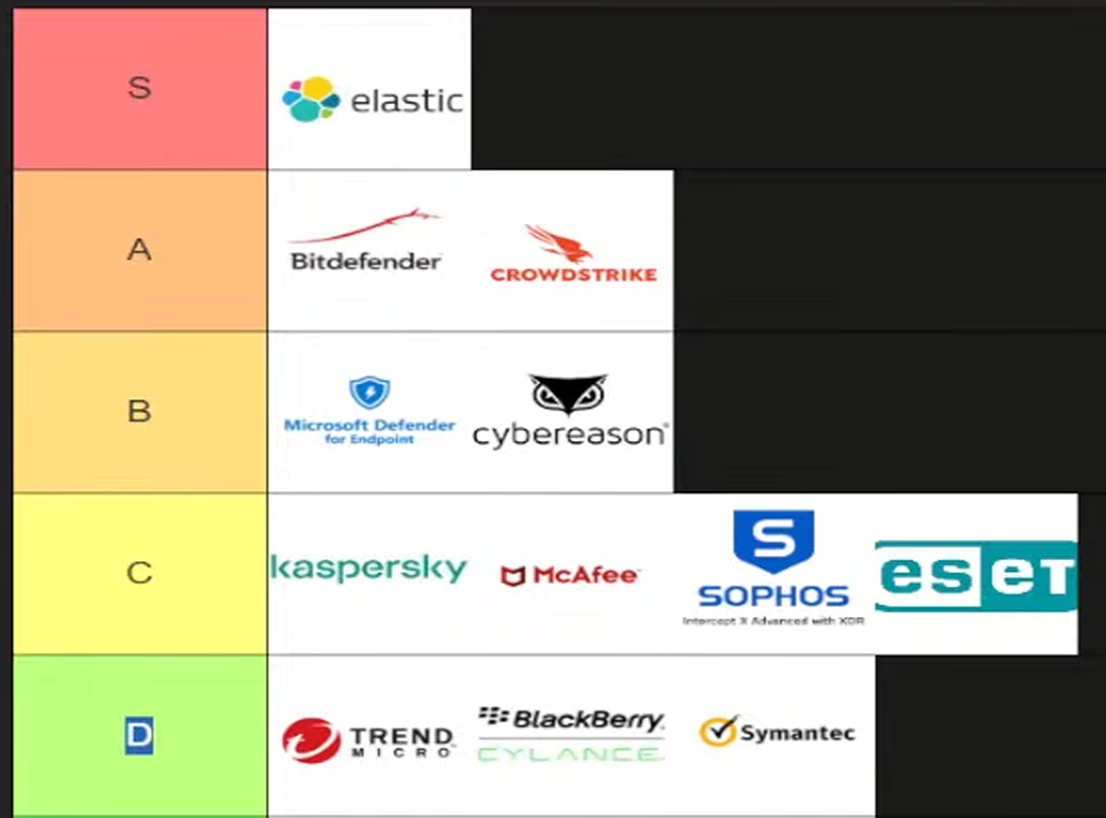
After looking into it, I found that trying out Elastic is completely free, and they even open-sourced their detection rules on GitHub, so they are pretty cool people.
Licensing note#
Elastic's free Basic license includes Elastic Defend malware protection (prevention and detection) and the full SIEM. These features need Platinum/Enterprise:
- Ransomware protection
- Memory threat protection
- Malicious behavior protection (behavioral rules)
- Response actions (host isolation, kill process, etc.)
Elastic offers a 30-day Enterprise trial that you can enable in Kibana with one click. You can let it lapse and start a fresh trial on a rebuilt lab later. This guide enables the trial so that all protections are active.
2. Prerequisites & Assumptions#
- Hypervisor: this series uses VMware Workstation Pro, which has been free for personal and commercial use since late 2024. Section 3 covers the VMware network setup. Everything else works on any hypervisor: Proxmox, Hyper-V or VirtualBox are fine if you build the same two networks there. Install the guest tools (VMware Tools, VirtIO or Guest Additions) on every VM right after the OS install.
- All VMs sit on an isolated lab network (
10.10.10.0/24). Each VM also has a NAT network adapter for internet access. That adapter stays disconnected, except while a VM downloads packages and updates (section 3.3 has the schedule). After Part 2, the lab runs fully offline: Elasticsearch, Kibana, Fleet and Mythic need no internet to run. - Elastic Defend offline: Elastic Defend gets new protection artifacts (malware model, rules, signatures) from Elastic over the internet. Offline, it keeps the last ones it downloaded. For repeatable tests that is a feature, not a bug: record the artifact date in your Part 4 results matrix, or turn off automatic updates and pick a fixed date on the Protection updates tab of the Elastic Defend policy.
- Elastic Stack version used here: 9.5.5, the latest release at the time of writing. Check https://www.elastic.co/downloads for the current release. The first version of this post used 8.19.x. If you built your lab on 8.19, update to the latest 8.19 patch, fix everything Kibana's Upgrade Assistant reports, then switch the APT repository from section 6 to
9.xand upgrade Elasticsearch, Kibana and the agents.
ISOs and downloads to grab before starting:
| What | Where |
|---|---|
| Ubuntu Server 24.04 LTS | https://ubuntu.com/download/server |
| Windows Server 2025 (180-day eval) | https://www.microsoft.com/en-us/evalcenter/evaluate-windows-server-2025 |
| Windows 11 Enterprise (90-day eval) | https://www.microsoft.com/en-us/evalcenter/evaluate-windows-11-enterprise |
| Visual Studio 2022 Community (free) | https://visualstudio.microsoft.com/vs/community/ |
3. Build the Lab Network (VMware Workstation)#
Every VM gets two network adapters. The lab is offline by default, and each VM only gets internet access while it needs to download something.
| Adapter | VMware network | Guest IP config | Used for |
|---|---|---|---|
| Adapter 1 (NAT) | VMnet8: NAT (the VMware default) | DHCP, VMware NAT supplies gateway and DNS | Packages and updates only. Disconnected by default |
| Adapter 2 (lab) | VMnet10: host-only, no host virtual adapter, no DHCP | Static IP, no gateway, no DNS server | All lab traffic: Fleet, telemetry, C2, payload transfer |
| VM | Adapter 1 (NAT) | Adapter 2 (VMnet10) |
|---|---|---|
| ELK01 | DHCP | 10.10.10.10/24 |
| TARGET01 | DHCP | 10.10.10.20/24 |
| ATTACKER01 | DHCP | 10.10.10.30/24 |
| MALDEV01 | DHCP | 10.10.10.40/24 |
Why two adapters:
- You connect or disconnect the NAT adapter of each VM separately while it runs. Cutting the internet for TARGET01 does not cut it for ATTACKER01 while it builds a payload.
- VMnet10 has no host virtual adapter, so payloads and the C2 implant cannot reach your physical machine. You operate the lab from MALDEV01 instead (section 3.5).
- VMnet8 stays untouched. VMware Workstation allows only one NAT network, and your other VMs probably use VMnet8 already.
A single NAT network with gateway 10.10.10.1 does not work: in VMware, the .1 address of a virtual network belongs to the host's virtual adapter, not to a router. The VMware NAT gateway and DNS proxy always sit at .2. A single NAT network also cannot cut the internet for one VM while another VM keeps it.
3.1 Create VMnet10#
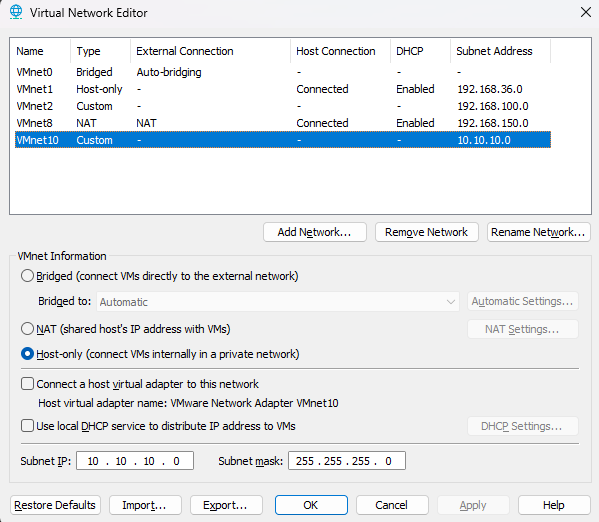
- In VMware Workstation, click Edit > Virtual Network Editor.
- Click Change Settings and approve the administrator prompt.
- Click Add Network..., select VMnet10, and click OK.
- Select Host-only (connect VMs internally in a private network).
- Set Subnet IP to
10.10.10.0and Subnet mask to255.255.255.0. - Clear Connect a host virtual adapter to this network.
- Clear Use local DHCP service to distribute IP address to VMs.
- Click Apply, then OK.
In the network list, VMnet10 shows a dash under both Host Connection and DHCP. The Type column can change to Custom once the host adapter is gone, which is normal.
With no host adapter and no DHCP, VMware does not actually use the subnet setting, because the static IPs inside the guests define the network. Set it anyway, so the editor documents your lab.
3.2 Give every VM two adapters#
Do this for each VM right after you create it, before you install the OS.
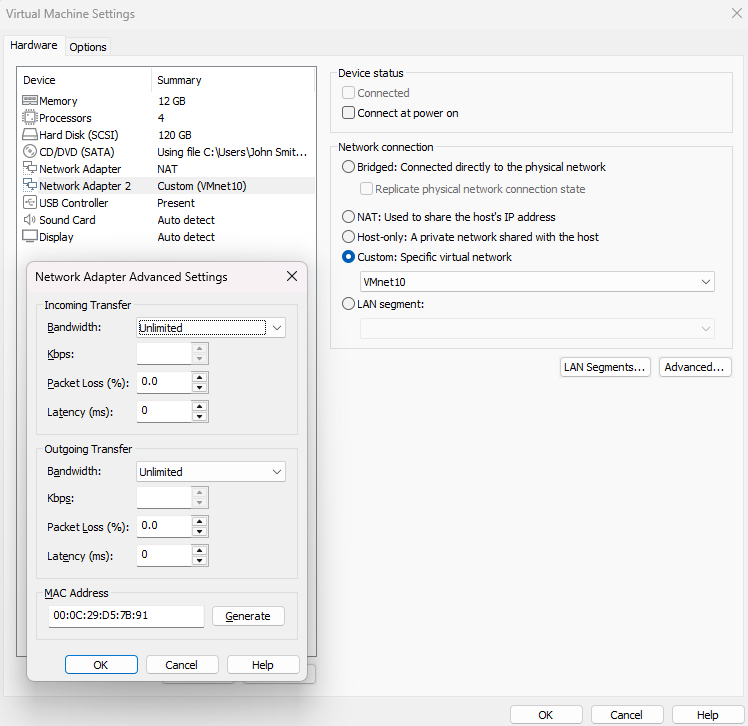
- Open VM > Settings > Network Adapter. A new VM already has this adapter on NAT, so keep it. This is adapter 1 (internet).
- Click Add... > Network Adapter > Finish. Select Custom: Specific virtual network for the new Network Adapter 2 and choose VMnet10. This is adapter 2 (lab).
- Set Connect at power on for adapter 1 as the table in section 3.3 says.
- For each adapter, click Advanced... and write down the MAC address. Inside the guest, you match the interfaces to the adapters by MAC.
3.3 When to connect adapter 1#
To connect or disconnect adapter 1 while a VM runs, use VM > Removable Devices > Network Adapter > Connect (or Disconnect).
| VM | Connect the NAT adapter for | Disconnect it |
|---|---|---|
| ELK01 | apt packages, the Fleet Server download, the Windows and Osquery Manager integrations | After Part 2 |
| TARGET01 | Windows Update, the Elastic Agent download, Sysmon, Atomic Red Team | After Part 2. Never while a payload is on the disk |
| MALDEV01 | Windows Update (section 4) and install-maldev01-tools.ps1 (section 13) |
After section 13. Reconnect briefly for updates only |
| ATTACKER01 | Mythic install, Apollo and the http profile, payload builds | When you are not building payloads |
Snapshots remember the adapter. A snapshot stores the VM settings, including Connect at power on. Before every snapshot of TARGET01 or MALDEV01, disconnect the NAT adapter and clear Connect at power on.
3.4 Close the non-network channels on TARGET01#
VMware Tools gives the host and the guest channels that do not use the network at all. On the detonation box, close them as soon as the VM exists:
- Open VM > Settings > Options > Guest Isolation. Clear Enable drag and drop and Enable copy and paste.
- Open Options > Shared Folders and select Disabled.
Move files to TARGET01 over the lab network only (an HTTP server or an SMB share). For a clipboard, RDP from MALDEV01 into TARGET01.
3.5 Your window into the lab: MALDEV01#
Your physical PC cannot reach VMnet10. That is the point. So you operate the lab from a VM inside it. MALDEV01 does this job:
- Browser for Kibana (
http://10.10.10.10:5601) and later the Mythic UI (https://10.10.10.30:7443). - SSH client (built into Windows 10/11) for ELK01 and ATTACKER01:
ssh <user>@10.10.10.10. Use it to paste long install commands, because the VMware console of a server VM has no clipboard. - RDP client for TARGET01:
mstsc /v:10.10.10.20.
That is why section 4 builds MALDEV01 before anything else. Its development tooling comes later, in section 13.
3.6 Test the isolation#
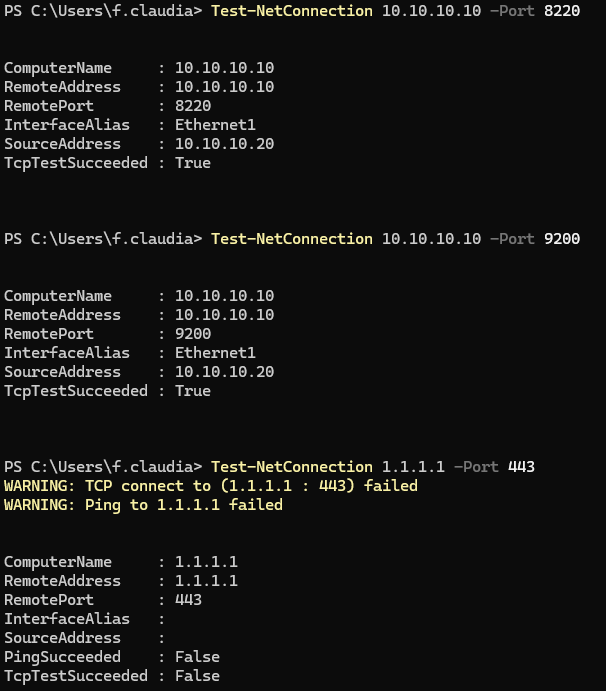
Run this on TARGET01 after section 11 (agent enrolled), with the NAT adapter disconnected:
Test-NetConnection 10.10.10.10 -Port 8220
Test-NetConnection 10.10.10.10 -Port 9200
Test-NetConnection 1.1.1.1 -Port 443
If the last test returns True, the NAT adapter is still connected, so check VM > Removable Devices. Run the test again after every snapshot revert in Parts 2-4; it only takes a few seconds. Part 3 adds one more line once Mythic is up: Test-NetConnection 10.10.10.30 -Port 80.
4. Build MALDEV01 (Windows 11)#
MALDEV01 is your window into the lab (section 3.5), so it comes first: every later section uses its browser, SSH client or RDP client. This section installs Windows and connects the VM to the lab. Section 13 turns it into the malware development workstation at the end of this post.
4.1 Create the VM and install the OS#
- Create a VM with 4 vCPU, 8GB RAM and a 120GB disk, plus the two network adapters from section 3.2. Attach the Windows 11 Enterprise evaluation ISO. Windows 10 22H2 works too and skips the TPM requirement below.
- Windows 11 note: the installer requires TPM 2.0 and Secure Boot. Either enable a virtual TPM in the VM settings before installing (VMware: VM Settings > Add > Trusted Platform Module; VirtualBox 7+: TPM 2.0 in System settings; Hyper-V: Security settings), or use Windows 10.
-
Install with a local account, not a Microsoft account, so the box stays anonymous and nothing sensitive syncs to the cloud. At the time of writing, this trick lets you create a local user without a Microsoft account:
- When you reach the "Let's connect you to a network" screen during setup, press Shift + F10 to open the Command Prompt.
- Type the following command and press Enter:
start ms-cxh:localonly
- Install the guest tools.
4.2 Hostname and static IP#
Rename the VM in an elevated PowerShell. It restarts right away:
Rename-Computer -NewName "MALDEV01" -Restart
After the reboot, list the network adapters:
Get-NetAdapter | Format-Table Name, InterfaceDescription, MacAddress, Status
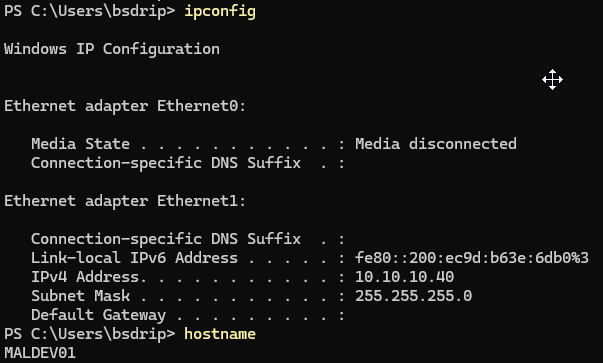
Adapter 2 (VMnet10) is the one whose MacAddress matches the MAC you noted in section 3.2. Below it is "Ethernet1"; adapter 1 (NAT) is usually "Ethernet0". If your names differ, change Ethernet1 in the next commands.
Give adapter 2 its static lab IP, with no gateway and no DNS server. A network without a gateway gets the Public firewall profile, so the second command makes it Private. If that one errors, wait a few seconds for Windows to detect the network, then run it again:
New-NetIPAddress -InterfaceAlias "Ethernet1" -IPAddress 10.10.10.40 -PrefixLength 24
Set-NetConnectionProfile -InterfaceAlias "Ethernet1" -NetworkCategory Private
Leave adapter 1 (NAT) on DHCP. VMware NAT supplies its IP, gateway and DNS.
4.3 Patch#
Connect the NAT adapter (section 3.3), run Windows Update to completion, and reboot.
5. Build ELK01 (Ubuntu Server 24.04)#
- Create the VM with 4 vCPU, 8-16GB RAM and a 120GB disk, plus the two network adapters from section 3.2. Attach the Ubuntu Server 24.04 ISO.
- Install with defaults, create your admin user, and install the OpenSSH server when prompted. The installer shows the lab adapter without an address, because VMnet10 has no DHCP. That is expected. Adapter 1 gets a DHCP address from VMware NAT, so the installer can still reach the internet.
- Configure both adapters with netplan, for example in
/etc/netplan/50-cloud-init.yaml. Find the interface names withip -br linkand match them to the MAC addresses you noted in section 3.2. The lab adapter gets the static IP and no gateway and no DNS server. The NAT adapter keeps DHCP, which supplies the gateway and DNS:
network:
  version: 2
  ethernets:
    ens33:
      dhcp4: true
      optional: true
    ens34:
      dhcp4: false
      addresses: [10.10.10.10/24]
Here ens33 is adapter 1 (NAT) and ens34 is adapter 2 (lab), so check both names against ip -br link. optional: true means the boot does not wait while the NAT adapter is disconnected.
Apply with sudo netplan apply, then check with ip -br addr: the lab interface shows 10.10.10.10/24, and the NAT interface shows a VMnet8 address while the NAT adapter is connected.
Do not add a gateway to the lab adapter. There is no router on VMnet10:
10.10.10.1would belong to a host virtual adapter, and VMnet10 has none. A second default route can also break internet access through the NAT adapter.

- Set the hostname and update:
sudo hostnamectl set-hostname elk01
sudo apt update && sudo apt full-upgrade -y
sudo reboot
6. Install Elasticsearch#
Prefer Docker? Section 17 sets up the same stack in containers with the Elastic Container Project. If you go that way, skip sections 6 to 8. Section 17.5 tells you where to pick up again.
Copy and paste does not work in the VMware console of ELK01, even with open-vm-tools installed. SSH into ELK01 from MALDEV01 (ssh <user>@10.10.10.10) and paste the commands there.
Add Elastic's GPG key and APT repository, then install Elasticsearch:
wget -qO - https://artifacts.elastic.co/GPG-KEY-elasticsearch | sudo gpg --dearmor -o /usr/share/keyrings/elasticsearch-keyring.gpg
sudo apt install -y apt-transport-https
echo "deb [signed-by=/usr/share/keyrings/elasticsearch-keyring.gpg] https://artifacts.elastic.co/packages/9.x/apt stable main" | sudo tee /etc/apt/sources.list.d/elastic-9.x.list
sudo apt update
sudo apt install -y elasticsearch
During the installation, Elasticsearch configures security on its own and prints:
- the
elasticsuperuser password - a Kibana enrollment token (valid for 30 minutes)
- the HTTP CA certificate fingerprint
Copy this output into your password manager right away. If you lose it, you can recover it with: -
sudo /usr/share/elasticsearch/bin/elasticsearch-reset-password -u elastic-sudo /usr/share/elasticsearch/bin/elasticsearch-create-enrollment-token -s kibana-sudo openssl x509 -fingerprint -sha256 -noout -in /etc/elasticsearch/certs/http_ca.crt | sed 's/.*=//; s/://g'
Now bind Elasticsearch to the lab network so the Fleet Server and the agents can reach it. Edit /etc/elasticsearch/elasticsearch.yml:
network.host: 0.0.0.0
To listen on the lab address only, use network.host: ["10.10.10.10"] instead.
Leave the generated TLS and security settings untouched. Then:
sudo systemctl daemon-reload
sudo systemctl enable --now elasticsearch
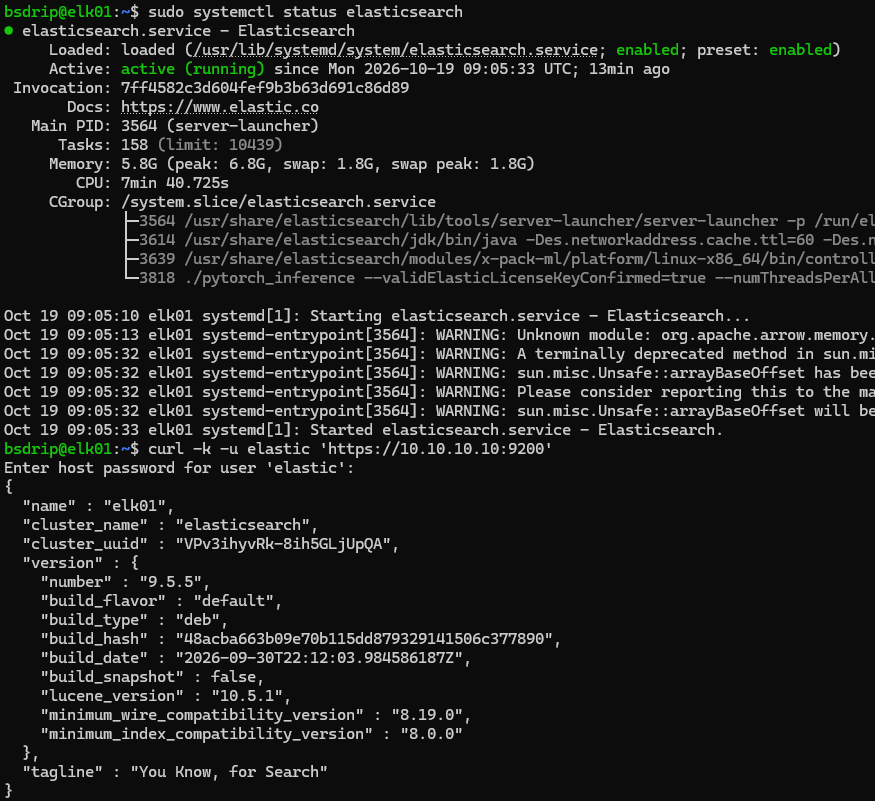
sudo systemctl status elasticsearch
Sanity check, with the elastic password from the install output:
curl -k -u elastic 'https://10.10.10.10:9200'
7. Install Kibana#
Install Kibana, create an enrollment token, and enroll Kibana into the secured cluster with that token:
sudo apt install -y kibana
sudo /usr/share/elasticsearch/bin/elasticsearch-create-enrollment-token -s kibana
sudo /usr/share/kibana/bin/kibana-setup --enrollment-token <KIBANA_ENROLLMENT_TOKEN>
Edit /etc/kibana/kibana.yml so Kibana is reachable from MALDEV01 (section 3.5):
server.host: "0.0.0.0"
While the file is open, check the block that kibana-setup added at the end. ELK01 has two adapters, so the enrollment can pick up the NAT address instead of the lab address. elasticsearch.hosts and, if present, the hosts inside xpack.fleet.outputs must both be https://10.10.10.10:9200:
elasticsearch.hosts: ['https://10.10.10.10:9200']
xpack.fleet.outputs: [{id: fleet-default-output, ..., hosts: ['https://10.10.10.10:9200'], ...}]
If either one shows the address of the NAT adapter, change it to 10.10.10.10. Fleet sends this output address to every agent, so with a NAT address the agents stop shipping data as soon as the NAT adapter is disconnected. You can check it later in Fleet > Settings > Outputs.
Kibana also needs encryption keys before Fleet and Elastic Defend can work. They encrypt the secrets Kibana stores (Fleet credentials, connectors, alerting rules), and the package install does not generate them. Without them, adding the Elastic Defend integration in section 9 fails with "Unable to create actions client because the Encrypted Saved Objects plugin is missing encryption key". Generate them:
sudo /usr/share/kibana/bin/kibana-encryption-keys generate -q
It prints three settings. Paste them at the end of kibana.yml:
xpack.encryptedSavedObjects.encryptionKey: <generated>
xpack.reporting.encryptionKey: <generated>
xpack.security.encryptionKey: <generated>
Store the keys in your password manager and never change them. A new encryptedSavedObjects key makes everything Kibana has already encrypted unreadable.
sudo systemctl enable --now kibana
The first start takes a few minutes. Follow it with:
sudo journalctl -u kibana -f
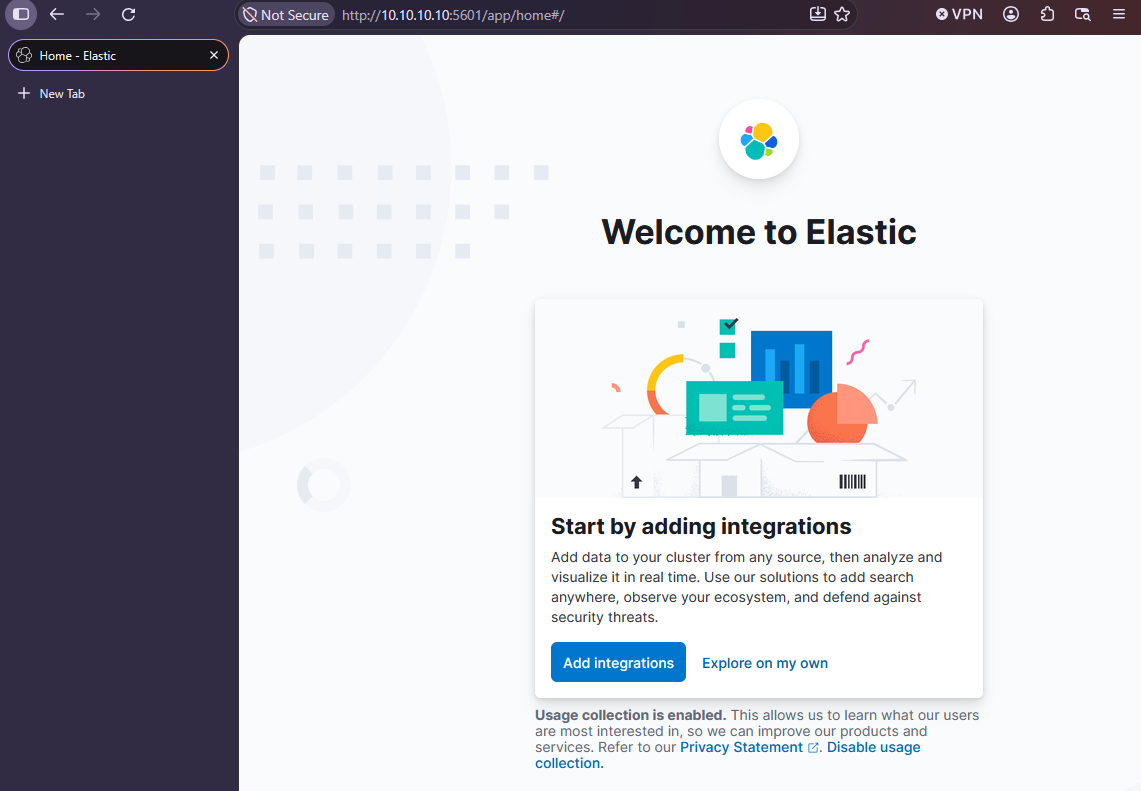
From MALDEV01, browse to http://10.10.10.10:5601 and log in as elastic with the password from section 6.
Enable the 30-day Enterprise trial#
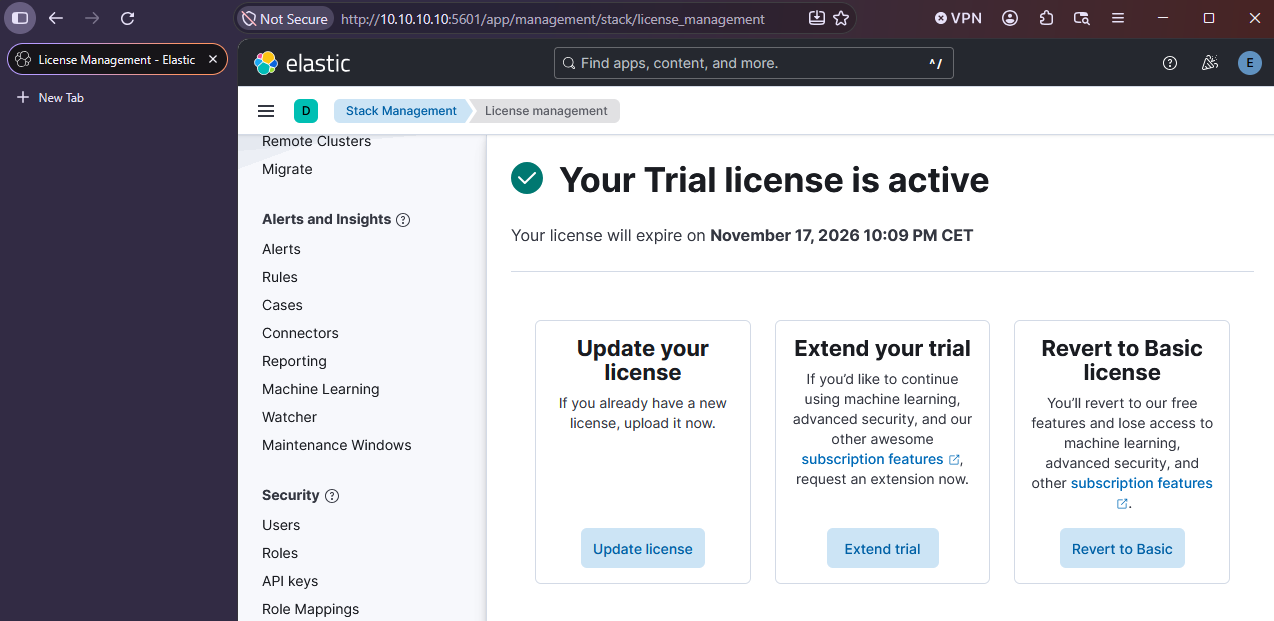
Kibana > Menu > Stack Management > License management > Start a 30-day trial.
This unlocks the ransomware, memory threat and malicious behavior protections and the response actions (host isolation etc.) in Elastic Defend.
8. Install Fleet Server (on ELK01)#
Elastic Agent, which carries Elastic Defend, is managed centrally by Fleet, and agents check in through a Fleet Server. The Fleet Server runs on ELK01 itself.
- Kibana > Menu > Management > Fleet. On the first visit, Kibana asks you to Add Fleet Server.
- Name:
ELK01-Fleet> URL:https://10.10.10.10:8220> Generate Fleet Server policy + service token. - Kibana shows an install command. Run it on ELK01 over SSH from MALDEV01. It downloads and installs Elastic Agent in Fleet Server mode, so the NAT adapter must be connected. It looks like this:
curl -L -O https://artifacts.elastic.co/downloads/beats/elastic-agent/elastic-agent-<VERSION>-linux-x86_64.tar.gz
tar xzvf elastic-agent-<VERSION>-linux-x86_64.tar.gz
cd elastic-agent-<VERSION>-linux-x86_64
sudo ./elastic-agent install \
  --fleet-server-es=https://10.10.10.10:9200 \
  --fleet-server-service-token=<SERVICE_TOKEN_FROM_UI> \
  --fleet-server-policy=fleet-server-policy \
  --fleet-server-es-ca-trusted-fingerprint=<CA_FINGERPRINT_FROM_UI> \
  --fleet-server-port=8220
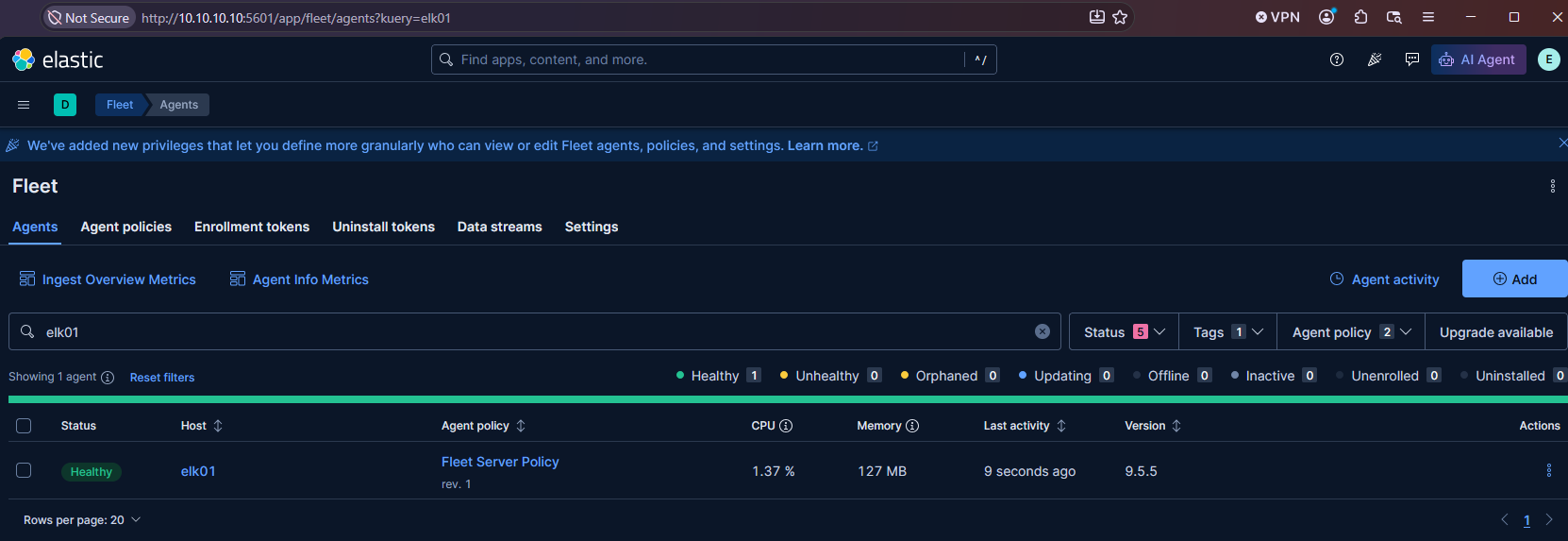
Copy the command from Kibana instead of typing this one: it already contains your stack's version, the service token and the CA fingerprint. After a minute or two, Fleet shows "Fleet Server connected" and the agent appears as healthy.
9. Create the Windows Agent Policy with Elastic Defend#
Do this before building TARGET01, so the enrollment token is ready when the VM is up.
- Kibana > Fleet > Agent policies > Create agent policy
- Name:
TARGET01-windows - Leave "Collect system logs and metrics" checked (extra telemetry for free).
- Name:
- Open the policy > Add integration > search "Elastic Defend" > Add Elastic Defend.
- The Add Elastic Defend integration page only asks for the basics. Protection modes come in the next step, after the integration exists. The yellow "Requires root privileges" banner is normal, because the agent runs as SYSTEM on Windows.
- Integration name:
defend-target01(required) - Type of environment: Traditional Endpoints (desktops, laptops, virtual machines)
- Configuration preset: Complete EDR. It includes all protections of the NGAV and Essential EDR presets plus full telemetry (process, file, network, registry, DLL loads, API events), which the analysis in Part 4 needs.
- Where to add this integration? > Existing hosts > agent policy
TARGET01-windows(already selected when you start from the policy). - Save and continue, then choose Add Elastic Agent later. TARGET01 does not exist yet; section 11 enrolls it.
- Integration name:
-
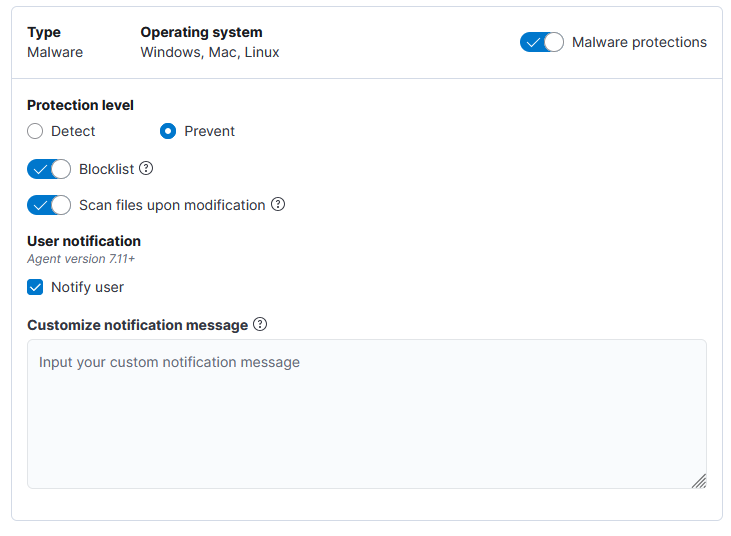
Now set the protection modes. Fleet > Agent policies > TARGET01-windows > click the integration name defend-target01. This opens the full Elastic Defend policy settings. Under Windows, check that each protection is enabled with protection level Prevent (not Detect):
- Malware: Prevent
- Ransomware: Prevent (trial)
- Memory threat: Prevent (trial)
- Malicious behavior: Prevent (trial)
Prevent is normally the default for these presets, but check it anyway. Detect only raises an alert and lets the payload run, so you would not see what Elastic actually blocks.
-
On the same page, set Antivirus registration to match the Defender setup you pick in section 10.6:
- Defender stays on and you test against both: Disabled. Registering Elastic as the antivirus is meant to take over that role from Defender.
- Elastic only: Enabled.
- Save integration.
Do not add trusted applications or exclusions on TARGET01. You want everything to fire here. Exclusions belong on MALDEV01 (section 13).
10. Build TARGET01 (Windows Server 2025)#
10.1 Create the VM and install the OS#
- Create a VM with 2 vCPU, 4-6GB RAM and an 80GB disk, plus the two network adapters from section 3.2. Attach the Windows Server 2025 evaluation ISO (section 2).
- Boot and install Windows Server 2025 Datacenter (Desktop Experience).
- Set the local Administrator password, log in, and install the guest tools.
- Reboot.
10.2 Hostname and static IP#
Rename the VM in an elevated PowerShell. It restarts right away:
Rename-Computer -NewName "TARGET01" -Restart
After the reboot, list the network adapters:
Get-NetAdapter | Format-Table Name, InterfaceDescription, MacAddress, Status
Adapter 2 (VMnet10) is the one whose MacAddress matches the MAC you noted in section 3.2. Below it is "Ethernet1"; adapter 1 (NAT) is usually "Ethernet0". If your names differ, change Ethernet1 in the next commands.
Give adapter 2 its static lab IP, with no gateway and no DNS server. A network without a gateway gets the Public firewall profile, so the second command makes it Private. If that one errors, wait a few seconds for Windows to detect the network, then run it again:
New-NetIPAddress -InterfaceAlias "Ethernet1" -IPAddress 10.10.10.20 -PrefixLength 24
Set-NetConnectionProfile -InterfaceAlias "Ethernet1" -NetworkCategory Private
Leave adapter 1 (NAT) on DHCP. VMware NAT supplies its IP, gateway and DNS.
10.3 Remote access and ping#
Enable RDP, so you can connect from MALDEV01 with mstsc /v:10.10.10.20, and allow ICMP echo so you can ping TARGET01 from ATTACKER01:
Set-ItemProperty -Path 'HKLM:\System\CurrentControlSet\Control\Terminal Server' -Name "fDenyTSConnections" -Value 0
Enable-NetFirewallRule -DisplayGroup "Remote Desktop"
New-NetFirewallRule -DisplayName "Allow ICMPv4 Echo" -Protocol ICMPv4 -IcmpType 8 -Action Allow
10.4 Patch#
Run Windows Update to completion (sconfig > option 6 > "A" for all updates, or Settings > Windows Update), reboot, and repeat until nothing is left.
10.5 Create a low-privilege test user#
Real payloads rarely run as Administrator on the first execution. A phished user double-clicks the loader, and it runs at medium integrity without admin rights. That is why every payload test in this series runs as a standard user, l.james. The same account is the starting point for privilege escalation testing, and an escalation payload only proves something if it starts from an account that genuinely has nothing.
Run this in an elevated PowerShell (as Administrator). The first line prompts for the password, so it never ends up in your shell history or a screenshot. The account joins Users only, deliberately NOT Administrators. It also joins Remote Desktop Users, because Windows Server only lets Administrators RDP in by default, and that group grants RDP logon and nothing else:
$pw = Read-Host -AsSecureString "Password for l.james"
New-LocalUser -Name "l.james" -Password $pw -FullName "LeBron James" -Description "Low-privilege payload test account" -PasswordNeverExpires
Add-LocalGroupMember -Group "Users" -Member "l.james"
Add-LocalGroupMember -Group "Remote Desktop Users" -Member "l.james"
Get-LocalGroupMember -Group "Administrators"
The last command lists the Administrators group. l.james must NOT appear in it.
-PasswordNeverExpires matters more than it looks: local passwords expire after 42 days by default, which is about when you would be deep into Part 4.
Leave UAC at its default level (Control Panel > User Accounts > Change User Account Control settings). A lower level changes how elevation works and makes privilege escalation results meaningless.
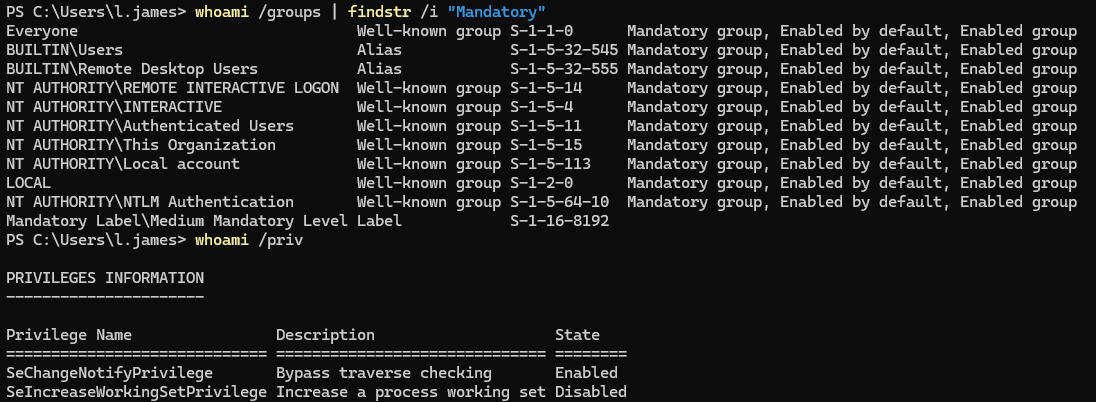
Log in once as l.james from MALDEV01 (mstsc /v:10.10.10.20, user TARGET01\l.james). The first logon creates the profile, including C:\Users\l.james\Desktop, which Parts 3 and 4 use as the drop location for payloads. Do this before the snapshot in 10.8, so the profile is part of the baseline. While you are logged in, check that the account really is low-privilege:
whoami /groups | findstr /i "Mandatory"
whoami /priv
The first command must show Mandatory Label\Medium Mandatory Level, and the second only SeChangeNotifyPrivilege and SeIncreaseWorkingSetPrivilege.
If you see High Mandatory Level or privileges such as SeDebugPrivilege or SeImpersonatePrivilege, the account is in a privileged group. Fix that before going further.
Privilege escalation vs. UAC bypass:
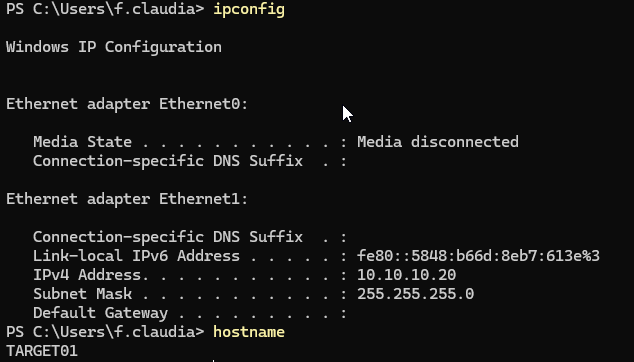
l.jamesis for privilege escalation, where a standard user becomes Administrator or SYSTEM through a misconfiguration or vulnerability. A UAC bypass is a different test: it starts from an administrator's medium-integrity token and elevates it to high without a prompt. To test those later, create a separate account (e.g.f.claudia) in the Administrators group and keep UAC at the default. Do not addl.jamesto Administrators, or the privilege escalation results are worthless.
10.6 Decide how Windows Defender runs#
There are two options:
- Defender and Elastic (recommended): leave Windows Defender fully enabled. Payloads then have to get past Defender and Elastic Defend, like on a real corporate endpoint.
- Elastic only: turn off Defender real-time protection, so every alert comes from Elastic:
Set-MpPreference -DisableRealtimeMonitoring $true
Whichever you choose, set the Elastic Defend Antivirus registration to match (section 9, step 5). If you change your mind later, update both.
10.7 (Optional) Install Sysmon#
Sysmon adds detailed process creation, network connection and image load events. Elastic ingests them through the Windows integration in Part 2. Install it with Olaf Hartong's sysmon-modular config:
Invoke-WebRequest -Uri https://download.sysinternals.com/files/Sysmon.zip -OutFile Sysmon.zip
Expand-Archive Sysmon.zip
Download sysmonconfig.xml from the sysmon-modular repo into the same folder, then install Sysmon with it:
.\Sysmon\sysmon64.exe -accepteula -i .\sysmonconfig.xml
10.8 Snapshot#
Disconnect the NAT adapter and clear its Connect at power on box (section 3.3). Then shut down the VM and take a snapshot: "TARGET01 clean baseline (pre-agent)". This is your rollback point for the agent install. Part 2 creates the baseline that payload testing reverts to. Reconnect the NAT adapter when you continue with section 11, because the agent download needs it.
11. Install the Elastic Agent on TARGET01#
- Kibana > Fleet > Agent policies > TARGET01-windows. At the top, under Agents, click Add agent. A panel opens on the right. Enroll in Fleet (recommended) is the tab at its top and is already selected. Leave it; the other option, Run standalone, is for agents that Fleet does not manage.
- In the panel, the Install Elastic Agent on your host step shows install commands per platform. Pick Windows and copy the PowerShell snippet on MALDEV01. RDP into TARGET01 (
mstsc /v:10.10.10.20) and run it in an elevated PowerShell there, with--insecureadded to the last line. That flag skips the validation of the Fleet Server's self-signed certificate, which is fine in a lab; in production you would deploy the CA certificate with--certificate-authorities=instead. The snippet looks like this:
$ProgressPreference = 'SilentlyContinue'
Invoke-WebRequest -Uri https://artifacts.elastic.co/downloads/beats/elastic-agent/elastic-agent-<VERSION>-windows-x86_64.zip -OutFile elastic-agent-<VERSION>-windows-x86_64.zip
Expand-Archive .\elastic-agent-<VERSION>-windows-x86_64.zip -DestinationPath .
cd elastic-agent-<VERSION>-windows-x86_64
.\elastic-agent.exe install --url=https://10.10.10.10:8220 --enrollment-token=<TOKEN_FROM_UI> --insecure
Use Kibana's snippet instead of typing this one: it contains your stack's exact <VERSION> and the enrollment token for this policy. The agent must not be newer than your Kibana and Fleet Server. Also check that --url is https://10.10.10.10:8220. If it shows the NAT address, fix the Fleet Server host in Fleet > Settings > Fleet server hosts first.
- Watch Fleet > Agents: TARGET01 should check in and turn Healthy within a minute.
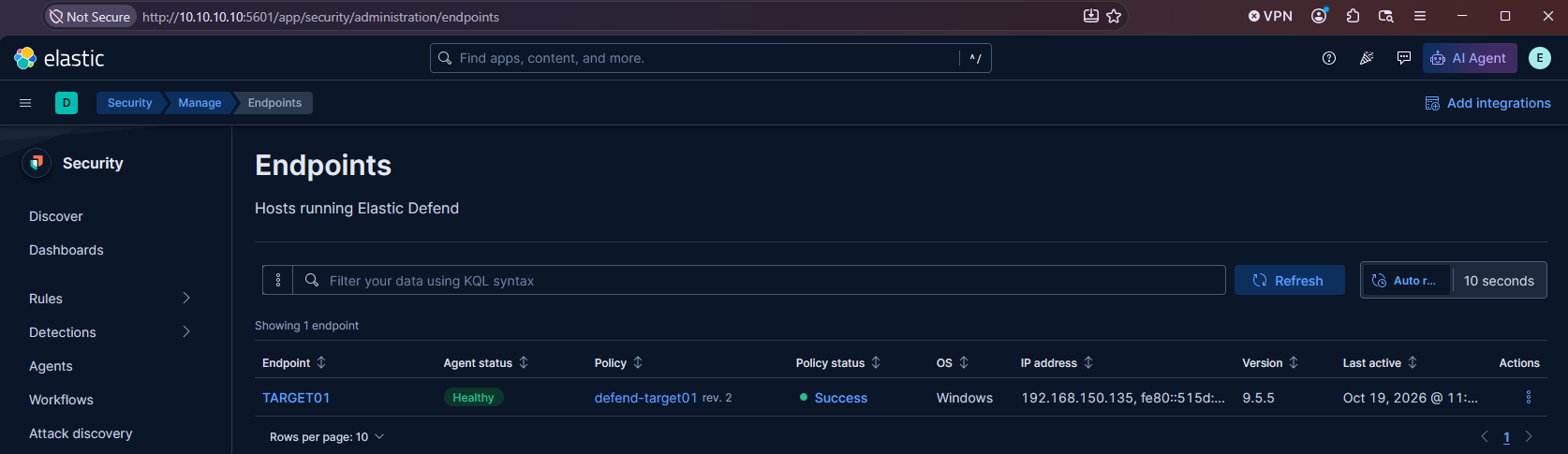
- Check Security > Manage > Endpoints: TARGET01 is listed with policy status Success.
- Disconnect the NAT adapter, clear Connect at power on, and take another snapshot: "TARGET01 Elastic Defend enrolled". Part 2 starts from this snapshot and ends with a new baseline, "TARGET01 telemetry baseline (Part 2)", which Parts 2-4 revert to. Keep the NAT adapter off in both snapshots. When Part 2 needs downloads, reconnect it by hand.
12. Validate the EDR (EICAR test)#
On TARGET01, write the EICAR string to a file in an elevated PowerShell. It is a harmless, industry-standard antivirus test string:
'X5O!P%@AP[4\PZX54(P^)7CC)7}$EICAR-STANDARD-ANTIVIRUS-TEST-FILE!$H+H*' | Out-File -Encoding ascii C:\Users\Public\eicar.com
Expected result:
- Elastic Defend blocks or quarantines the file on write. If you left Defender on, whoever wins the race gets the credit, so check both.
- Within a minute, an alert appears in Kibana > Security > Alerts (rule: Endpoint Security) with the process tree, file hash and user.
- The raw events are in Analytics > Discover (data views
logs-*,metrics-*,alerts-*).
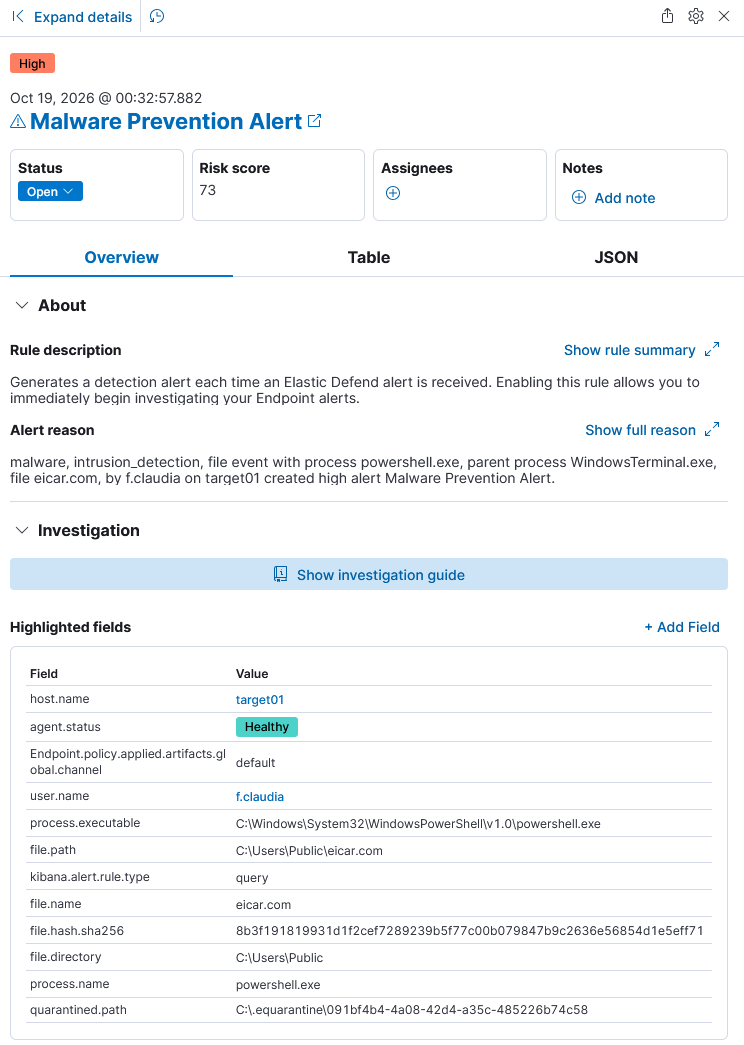
If Defender caught the file first and you want to see Elastic block it on its own, turn off Defender real-time protection for a moment and run the test again.
13. Set Up MALDEV01 for Malware Development#
MALDEV01 is where payloads are written and compiled, the box the EDR is never supposed to see until detonation time. Its setup is almost the inverse of TARGET01's. You built the VM in section 4; this section adds the course tooling and the Defender settings.
13.1 Install the course tooling with install-maldev01-tools.ps1#
MalDevAcademy asks for a fixed set of tools. Instead of installing them one by one, use the install-maldev01-tools.ps1 script from this series' resources repository: https://github.com/bsdrip/blog-resources/tree/main/01-elastic-edr-lab-setup. The folder is named after this post. The script installs the course's tool list, plus PowerShell 7.
Connect the NAT adapter first (section 3.3). Then open PowerShell as Administrator and run the commands below. The Get-Content line pages through the script first, because you should always read a script before you run it as Administrator:
cd $env:USERPROFILE\Downloads
Invoke-WebRequest -Uri https://raw.githubusercontent.com/bsdrip/blog-resources/main/01-elastic-edr-lab-setup/install-maldev01-tools.ps1 -OutFile install-maldev01-tools.ps1
Get-Content .\install-maldev01-tools.ps1 | more
Set-ExecutionPolicy -ExecutionPolicy Bypass -Scope Process -Force
.\install-maldev01-tools.ps1
The run takes 30-60 minutes, most of it for Visual Studio. Two things need your attention:
- Visual Studio shows a progress window. It closes by itself; do not cancel it.
- Npcap (the capture driver for Wireshark) has no silent install in its free edition. When its installer opens, click through it with the default options.
Each tool installs on its own. If one fails, the script prints a warning, continues with the rest, and lists the failed steps at the end. Run the script again to retry them; tools that are already installed are skipped or updated. The full log is in C:\Windows\Temp\install-maldev01-tools.log.
Reboot when the script is done.
Skip the optional tools. The course marks Git, WinDbg, Ghidra/IDA and Wireshark as optional. To leave any of them out, add switches:
.\install-maldev01-tools.ps1 -SkipGit -SkipWinDbg -SkipGhidra -SkipWireshark.
13.2 What the script installs#
| Tool | Purpose | Installed to / via |
|---|---|---|
| Visual Studio 2022 Community | Main IDE, MSVC compiler, linker, debugger. Workload Desktop development with C++ | Microsoft's VS bootstrapper |
| Windows SDK | Headers and libraries for native Windows development | Part of the C++ workload |
| Visual Studio Code | Quick editing of source files, scripts, notes | winget |
| PowerShell 7 | Current PowerShell, set as the default profile in Windows Terminal | Official MSI from GitHub |
| Git for Windows (optional) | Version control for your experiments | winget |
| Python 3 | Helper scripts, parsing, automation | winget, machine-wide, on PATH |
| x64dbg | The course's main user-mode debugger | C:\Tools\x64dbg |
| WinDbg (optional) | Advanced, symbol-aware and kernel debugging | winget |
| PE-bear | PE header, section, import and export analysis | C:\Tools\PE-bear |
| Ghidra (optional) + OpenJDK 21 | Disassembler/decompiler for static analysis. JDK 21 is the runtime Ghidra needs | C:\Tools\Ghidra, JDK via winget |
| System Informer | Processes, handles, threads, memory regions | winget |
| Sysinternals Suite | Process Monitor, Process Explorer, Strings and more | C:\Tools\Sysinternals, on PATH |
| Wireshark (optional) + Npcap | Network traffic capture and analysis | winget, Npcap from npcap.com |
Windows PowerShell 5.1 is part of Windows and stays installed; the Start menu entry Windows PowerShell still opens it. The script makes PowerShell 7 the default profile of Windows Terminal, so Terminal, Win+X > Terminal (Admin) and Open in Terminal start PowerShell 7. On Windows 10 without Windows Terminal, open PowerShell 7 from the Start menu. The rest of this series works in either version.
The portable tools in C:\Tools get Start menu shortcuts under Lab Tools. The script accepts the Sysinternals EULA for you, so the tools do not prompt on first launch.
IDA Free instead of Ghidra? The course mostly shows IDA. The script cannot install IDA Free, because Hex-Rays requires a free account login for the download. If you want it, sign up at https://hex-rays.com/ida-free, install it by hand, and run the script with
-SkipGhidra. Ghidra is enough to follow along.
Check the toolchain from Developer PowerShell for VS 2022 (Start menu). cl.exe should print the MSVC compiler banner:
cl.exe
13.3 Configure Defender on the dev box#
Defender will flag and quarantine your freshly compiled payloads in the middle of a build. Worse, with default settings Windows can upload your samples to Microsoft, burning your techniques and feeding signatures that later catch your own loaders. These settings fix both. The first two commands create a dedicated dev directory and exclude it from scanning. The last two make sure nothing is ever uploaded to Microsoft (OPSEC!): -SubmitSamplesConsent 2 means "never send", and -MAPSReporting Disabled turns off the cloud-delivered protection telemetry.
New-Item -Path "C:\Dev" -ItemType Directory
Add-MpPreference -ExclusionPath "C:\Dev"
Set-MpPreference -SubmitSamplesConsent 2
Set-MpPreference -MAPSReporting Disabled
If Set-MpPreference throws errors, Tamper Protection is blocking you. Turn it off in Windows Security > Virus & threat protection > Manage settings > Tamper Protection, then run the commands again.
How much of Defender to keep:
- Exclusion only (recommended): the settings above, an excluded folder and no sample submission. Real-time protection stays on for everything outside
C:\Dev, so the box isn't completely naked. - Nuclear (what many courses suggest): turn off real-time protection entirely:
Set-MpPreference -DisableRealtimeMonitoring $true
This is convenient, but the box then has no protection at all, so keep the NAT adapter disconnected permanently.
Do not install the Elastic Agent on MALDEV01. Telemetry from your dev machine leaking into the same SIEM you demo in blog posts is a bad look, and it defeats the purpose of a clean build environment.
13.4 Verify the Defender exclusion#
Make sure the exclusion really protects C:\Dev. A harmless test program does not prove anything here, because Defender ignores it everywhere. You need a file Defender always detects: the EICAR test string from section 12. Write it once inside C:\Dev and once outside, then compare. The string is split in two halves so that PowerShell's own malware scan (AMSI) does not block the command before the file is written:
$eicar = 'X5O!P%@AP[4\PZX54(P^)7CC)7}$EICAR-STANDARD-' + 'ANTIVIRUS-TEST-FILE!$H+H*'
$eicar | Out-File -Encoding ascii C:\Dev\eicar.com
$eicar | Out-File -Encoding ascii $env:USERPROFILE\Desktop\eicar.com
Start-Sleep 5
Test-Path C:\Dev\eicar.com
Test-Path $env:USERPROFILE\Desktop\eicar.com
Get-MpThreatDetection | Select-Object -Last 1 InitialDetectionTime, Resources
Remove-Item C:\Dev\eicar.com
Expected: the first Test-Path returns True, because the copy in C:\Dev stays and the exclusion works. The second returns False, because the Desktop copy was quarantined by real-time protection. Windows Security shows a Virus:DOS/EICAR_Test_File detection for the Desktop path only. If you went Nuclear in 13.3, both copies stay, because there is no real-time protection to test.
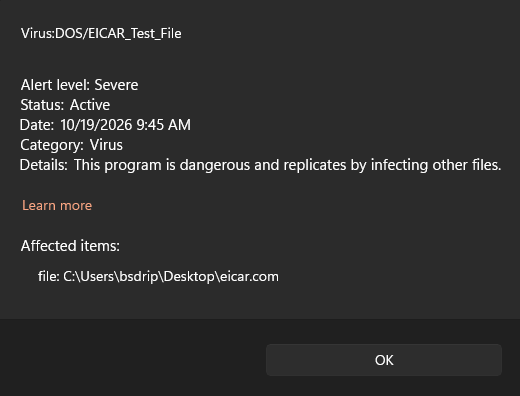
The same applies to your payloads later: anything you copy out of C:\Dev is fair game for Defender again. Move test builds to TARGET01 straight from C:\Dev and do not keep them anywhere else on MALDEV01.
If the check passes, MALDEV01 is ready for the course.
13.5 Snapshot#
Disconnect the NAT adapter, clear its Connect at power on box, then take a snapshot: "MALDEV01 clean dev baseline (VS2022 + tooling)". Take new snapshots as you add course materials, so you can always roll back to a working build environment.
14. Using the Lab#
Once everything is built, a working session looks like this:
- Start the VMs in order: ELK01 first (give Elasticsearch and Kibana a few minutes), then TARGET01 and MALDEV01, plus ATTACKER01 once you have the C2 from Part 3. Check Fleet > Agents: TARGET01 must be Healthy before you test anything, otherwise you miss telemetry.
- Revert TARGET01 to its baseline snapshot before every test: "TARGET01 Elastic Defend enrolled" for now, and the Part 2 telemetry baseline once you have done Part 2. A payload that ran on a dirty box proves nothing: leftover files, processes and persistence from the previous run change what Elastic sees.
- Build on MALDEV01, inside
C:\Devonly. - Transfer and run: copy the payload over the lab network to
C:\Users\l.james\Desktopon TARGET01 and run it asl.james, at medium integrity without admin rights, like a real first execution. - Check Kibana: Security > Alerts shows what was detected or blocked, and Analytics > Discover shows the raw events even when nothing alerted. Both matter, because "no alert" isn't the same as "invisible".
- Take notes: payload version, technique, what Elastic saw and what it blocked. Then revert TARGET01 and start the next round.
Shut the VMs down in reverse order, with ELK01 last, and keep the NAT adapters disconnected the whole time. The lab needs no internet once it is built.
15. Checklist#
- [ ] Snapshots exist for ELK01, TARGET01 (pre-agent and enrolled) and MALDEV01 (clean dev baseline), all taken with the NAT adapter disconnected and Connect at power on cleared.
- [ ] All credentials (elastic password, service tokens, Kibana encryption keys, VM passwords) are in your password manager.
- [ ] NAT adapter disconnected on MALDEV01 for good (reconnect briefly for updates only). ELK01 and TARGET01 keep it until Part 2 is done (section 3.3).
- [ ] Guest isolation set on TARGET01: no drag and drop, no copy and paste, no shared folders (section 3.4).
- [ ] Isolation test passed on TARGET01 (section 3.6).
- [ ] l.james on TARGET01 is not an administrator, has logged in once, and
whoami /groupsshows Medium Mandatory Level (section 10.5). - [ ] (Optional) ELK01 firewalled so it only accepts connections from the lab network, not from the NAT adapter:
sudo ufw allow from 10.10.10.0/24 to any port 22,5601,8220,9200 proto tcp && sudo ufw enable - [ ] (Optional) The Windows integration added to the TARGET01 policy for Windows Event Log and Sysmon ingestion, and the osquery integration for live hunting.
16. Troubleshooting#
| Symptom | Fix |
|---|---|
| Cannot open Kibana or SSH from your host PC | Expected: VMnet10 has no host virtual adapter. Work from MALDEV01 (section 3.5) |
| l.james cannot RDP into TARGET01 ("not authorized for remote login") | Add it to Remote Desktop Users: Add-LocalGroupMember -Group "Remote Desktop Users" -Member l.james (section 10.5) |
| "Unable to create actions client because the Encrypted Saved Objects plugin is missing encryption key" | Kibana has no encryption keys: sudo /usr/share/kibana/bin/kibana-encryption-keys generate -q, add the output to kibana.yml, restart Kibana (section 7) |
SSL_ERROR_RX_RECORD_TOO_LONG when opening Kibana |
Kibana serves plain HTTP by default. Use http://10.10.10.10:5601. The Docker setup from section 17 is the exception: it serves https://10.10.10.10:5601 |
| Lab VMs cannot reach each other | Adapter 2 on VMnet10 on both VMs? Static IP on the right interface (compare MACs)? Windows lab adapter set to Private? |
| No internet during the build | NAT adapter connected (VM > Removable Devices)? It has a VMnet8 DHCP address? No gateway on the lab adapter? |
| Agents go unhealthy when ELK01's NAT adapter is disconnected | The Fleet output points to the NAT address. Fix kibana.yml (section 7) and restart Kibana |
| Internet reachable after a snapshot revert | The snapshot was taken with the NAT adapter connected. Disconnect it, clear Connect at power on, take a new snapshot |
| Kibana does not load or shows 502 | Wait, the first start is slow. Check sudo journalctl -u kibana -f and make sure ELK01 has at least 8GB RAM |
Lost elastic password |
sudo /usr/share/elasticsearch/bin/elasticsearch-reset-password -u elastic |
| Kibana enrollment token expired | sudo /usr/share/elasticsearch/bin/elasticsearch-create-enrollment-token -s kibana |
| Fleet Server never connects | Test-NetConnection 10.10.10.10 -Port 9200; check network.host in elasticsearch.yml; sudo elastic-agent status |
| Windows agent unhealthy | Test-NetConnection 10.10.10.10 -Port 8220 on TARGET01; reinstall with --insecure if there are TLS errors |
install-maldev01-tools.ps1: Npcap step fails with a TLS/SSL trust error |
npcap.com's certificate is expired or not trusted. The script never works around TLS errors, because Npcap is a kernel driver. Run the script again later, or install Npcap by hand from https://npcap.com/#download with the default options |
Set-MpPreference access denied on MALDEV01 |
Tamper Protection is on. Turn it off in Windows Security first |
| Defender keeps deleting compiled payloads | Check the exclusion: Get-MpPreference \| Select -ExpandProperty ExclusionPath; keep your work inside C:\Dev |
| Windows 11 installer refuses (TPM) | Enable a virtual TPM in the VM settings, or install Windows 10 22H2 |
| Elasticsearch indices become read-only | The disk is almost full (disk watermark). Free up space or delete old indices in Stack Management > Index Management |
| Uninstall the agent | Windows: .\elastic-agent.exe uninstall (in the agent folder, elevated). Linux: sudo elastic-agent uninstall |
Docker: ./elastic-container.sh update-version fails with 403 |
Docker Hub refuses to list more than 10,000 tags, and Elasticsearch has more. Set STACK_VERSION in .env by hand (section 17.2) |
Docker: container ecp-kibana is unhealthy, and sudo docker logs ecp-kibana shows getaddrinfo ENOTFOUND ecp-elasticsearch |
Something else held port 9200 when the containers started, usually an apt install of Elasticsearch. Stop it and start the containers again (section 17.3) |
17. Alternative: Run the Elastic Stack in Docker#
Sections 6 to 8 install Elasticsearch, Kibana and the Fleet Server with apt. The Elastic Container Project does the same job with Docker. One script starts all three as containers, sets up TLS, turns on the detection engine and installs Elastic's prebuilt rules. Both ways end with the same lab, so pick one. As its README says, the project is not made or maintained by Elastic.
Use it instead of sections 6 to 8, on a fresh ELK01 from section 5. Do not run both: the apt install and the containers need the same ports (9200, 5601 and 8220).
17.1 Install Docker#
Connect the NAT adapter on ELK01 (section 3.3), SSH in from MALDEV01, and install Docker from Docker's own repository:
sudo apt update
sudo apt install -y ca-certificates curl git jq
sudo install -m 0755 -d /etc/apt/keyrings
sudo curl -fsSL https://download.docker.com/linux/ubuntu/gpg -o /etc/apt/keyrings/docker.asc
echo "deb [arch=$(dpkg --print-architecture) signed-by=/etc/apt/keyrings/docker.asc] https://download.docker.com/linux/ubuntu $(. /etc/os-release && echo $VERSION_CODENAME) stable" | sudo tee /etc/apt/sources.list.d/docker.list
sudo apt update
sudo apt install -y docker-ce docker-ce-cli containerd.io docker-compose-plugin
If curl fails with Could not resolve host, the NAT adapter is not really connected. cat /sys/class/net/ens33/carrier prints 0 in that case. Check VM > Settings on the ELK01 tab (not another VM's), and compare the adapter's MAC address with ip link (section 3.2).
17.2 Clone and configure#
git clone https://github.com/peasead/elastic-container.git
cd elastic-container
chmod +x elastic-container.sh
The project has an update-version command that should set the newest Elastic version. At the time of writing it fails with a 403: Elasticsearch has more than 10,000 image tags on Docker Hub, and Docker Hub refuses to list past that. Set the version yourself:
sed -i 's/^STACK_VERSION=.*/STACK_VERSION=9.5.5/' .env
grep ^STACK_VERSION .env
Then open .env and change these lines:
ELASTIC_PASSWORD=<strong password>
KIBANA_PASSWORD=<another strong password>
LICENSE=trial
WindowsDR=1
MEM_LIMIT=4294967296
- Passwords: the script refuses to start while
changemeis still anywhere in.env. You log in to Kibana aselasticwithELASTIC_PASSWORD. Store both in your password manager. LICENSE=trialstarts the 30-day Enterprise trial right away, so the trial step from section 7 is already done.WindowsDR=1enables Elastic's prebuilt detection rules for Windows.MEM_LIMITis the memory limit for each container, in bytes. The default of 2GB leaves Elasticsearch only about 1GB of heap. 4GB fits a 16GB ELK01; with 8GB, use3221225472(3GB).
Kibana needs the same encryption keys as in section 7. The project's kibana.yml sets only one of them, and to a placeholder that is the same for everyone who clones the repo. Replace the placeholder and add the other two:
sed -i "s/thirty-two-or-more-random-characters/$(openssl rand -hex 32)/" kibana.yml
echo "xpack.security.encryptionKey: \"$(openssl rand -hex 32)\"" >> kibana.yml
echo "xpack.reporting.encryptionKey: \"$(openssl rand -hex 32)\"" >> kibana.yml
Same rule as in section 7: copy the three keys from kibana.yml into your password manager and never change them.
17.3 Start the stack#
sudo ./elastic-container.sh start
The first start downloads the images and takes a few minutes. It ends with READY SET GO!. The containers restart on their own when ELK01 boots, and sudo ./elastic-container.sh status shows them at any time.
If it stops with container ecp-kibana is unhealthy instead, something else held port 9200, most likely an Elasticsearch you installed with apt earlier. Docker then cannot attach the Elasticsearch container to the network, and Kibana never finds it. Check the ports, stop the apt services, remove the broken containers and start again:
sudo ss -ltnp | grep -E ':(9200|5601|8220) '
sudo systemctl disable --now elasticsearch kibana elastic-agent
sudo docker compose down
sudo ./elastic-container.sh start
docker compose down without -v keeps the volumes, so the certificates survive.
17.4 Fix the Fleet addresses#
From MALDEV01, browse to https://10.10.10.10:5601. This setup serves Kibana over https with a self-signed certificate, so accept the browser warning. Log in as elastic.
The script registers the Fleet Server and the Elasticsearch output with the first address of hostname -I. On ELK01 that is the NAT adapter, the same trap as in section 7. If you skip this fix, the Add agent panel in section 11 hands you an install command with --url=https://<NAT address>:8220, and the agents lose Fleet as soon as the NAT adapter is disconnected.
- Open Fleet > Settings > Fleet server hosts and edit the entry the script created (called
default). Set the URL tohttps://10.10.10.10:8220, leave Make this Fleet server the default one checked, and save. Confirm the dialog about updating the agent policies. - On the same page under Outputs, edit
defaultand set its host tohttps://10.10.10.10:9200. Leavessl.verification_mode: certificatein its advanced YAML. The certificates only namelocalhostand the container names, not10.10.10.10, and this setting skips the name check. For the same reason, TARGET01 still enrolls with--insecurein section 11.
The Fleet Server container itself does not care about these addresses, because it talks to Elasticsearch over the internal Docker network.
Check two more things:
- Fleet > Agents shows the Fleet Server agent as Healthy.
- Stack Management > License management shows the trial as active.
17.5 Use the script's Elastic Defend policy#
The script also creates an agent policy called Endpoint Policy. It contains the system integration and an Elastic Defend integration with the Complete EDR preset, which is what section 9 builds by hand. Rename it to the names this series uses, so section 11 and Part 2 match:
- Fleet > Agent policies > Endpoint Policy > Settings: set the name to
TARGET01-windowsand save. While you are there, check that Fleet Server is the default host orhttps://10.10.10.10:8220. - Click the integration Elastic Defend and rename it to
defend-target01. - Continue with section 9 at step 4: check that every protection is on Prevent, and set Antivirus registration to match your Defender choice. The script does not set the antivirus registration for you.
Then build TARGET01 (section 10) and enroll it (section 11). When the Add agent panel opens, check that the command ends with --url=https://10.10.10.10:8220. If it still shows the NAT address, fix the Fleet Server host as in 17.4, then close the panel and open it again, because Kibana builds the command only when the panel opens.
17.6 Good to know#
- The ufw rule from section 15 does not cover the containers. Docker opens its published ports past ufw, on every interface. Keep ELK01's NAT adapter disconnected whenever you do not need it.
- Upgrades are easy: set the new version in
STACK_VERSION, then runsudo docker compose up -din theelastic-containerfolder. The data lives in Docker volumes and stays. destroydeletes everything.sudo ./elastic-container.sh destroyremoves the volumes too: alerts, enrolled agents, all of it. Usestopfor a break.
18. Next Parts in This Series#
- Part 2: Telemetry tuning on TARGET01. Ingesting Sysmon and Windows logs into Elastic, osquery, and testing detection coverage with Atomic Red Team.
- Part 3: Mythic C2 on ATTACKER01. Setting up the server, generating a first agent, and watching Elastic Defend catch it.
- Part 4: The MalDevAcademy loop. Building loaders on MALDEV01, running them on TARGET01 as
l.james, reading Elastic's telemetry and alerts, and iterating until the payload gets through. Then writing detections for it.
Lab safety note: all payloads run on isolated VMs with snapshots. Never run course payloads on a networked production machine, keep the lab network cut off from the internet when you run real malware, and never let dev samples leave the lab. That is also why sample submission is disabled on MALDEV01.